> ## Documentation Index
> Fetch the complete documentation index at: https://developer.novacpayment.com/llms.txt
> Use this file to discover all available pages before exploring further.
# Create a Payment Link
> Learn how to create and use Payment Links when integrating with Novac.
## Overview
Payment Links extend the functionality of Checkouts, offering a powerful and flexible way to receive payments from your customers. They support multiple payment methods and can be accessed from anywhere, on any device, ensuring a seamless payment experience for your customers.
Merchants can use Novac Payment Links for a variety of purposes, including online sales on social media, service subscriptions, loan repayments, and even donations or fundraising campaigns. This is due to the reusability nature.
You can create a payment link on Novac dashboard. When you create from your dashboard they are mostly reusable, this means that you can receive inflows from a single created payment link by sending to multiple customers. However, if you want to create a checkout payment that is uniquely tied to a specific payment link — for example, for a one-time or customer-specific transaction, you should create it via the API.
In this tutorial, we will explain step-by-step how you can create a payment link from the dashboard.
## Prerequisite
To get started you must have complete all the following item on the list below:
* [Create a merchant account](/docs/getting-started/create-merchant-account) - Ensure that you have created an account and completed KYC.
* [Obtain API keys](/docs/getting-started/obtain-api-keys) - Required to authenticate with the Novac API.
## Payment Methods
Your clients can choose to pay via :
1. Card Payment - Available in checkout payment.
2. Bank transfer - Available in checkout payment.
3. USSD payment - Available in checkout payment.
4. Opay - Available in checkout payment.
5. Palmpay - Available in checkout payment.
***
## Create a Reusable Payment Link via Dashboard
Sign in to your [**Novac Dashboard**](https://app.novacpayment.com) using your account credentials.
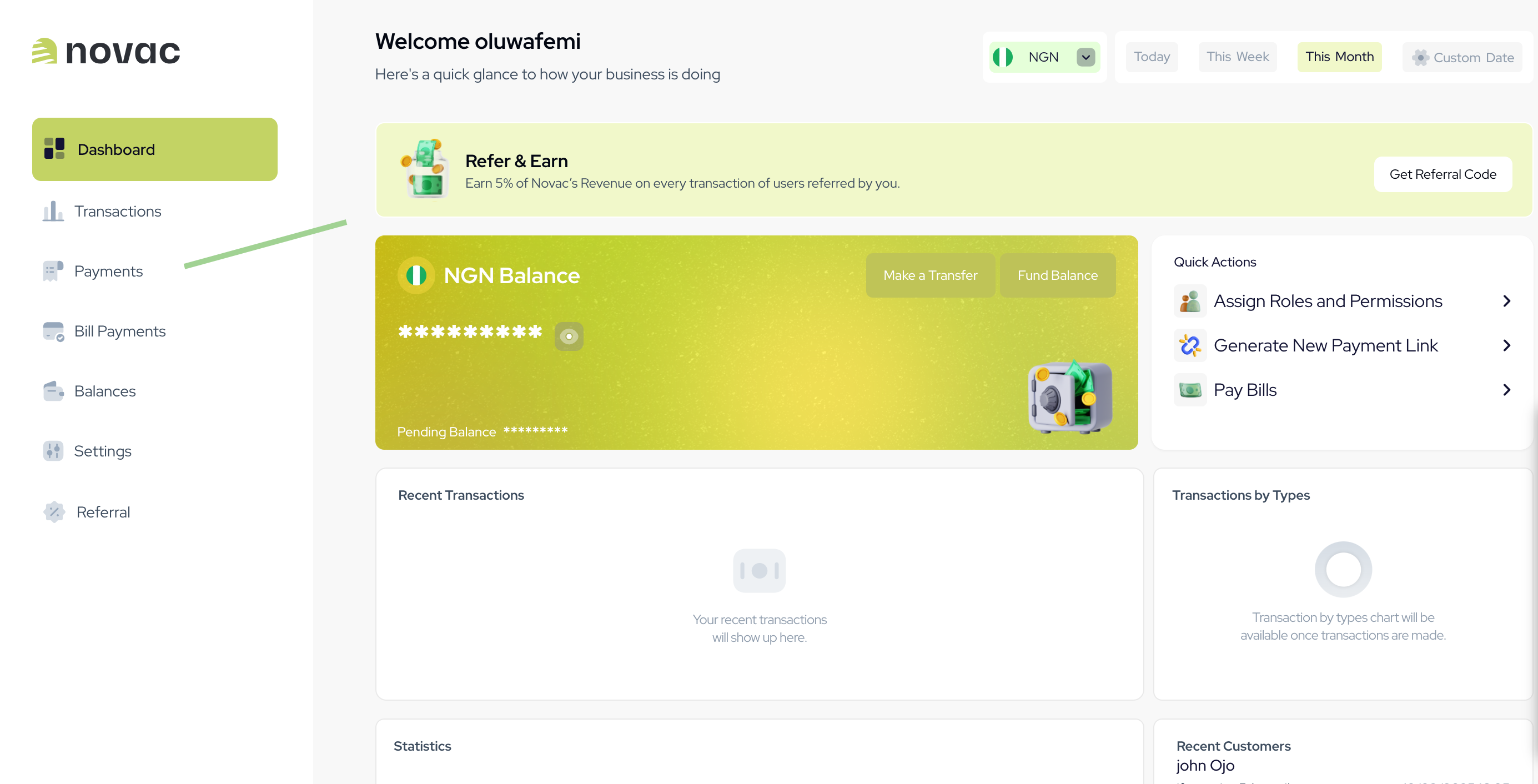
On the side menu, navigate to the **Payments** tab and click on **Payment Links**.
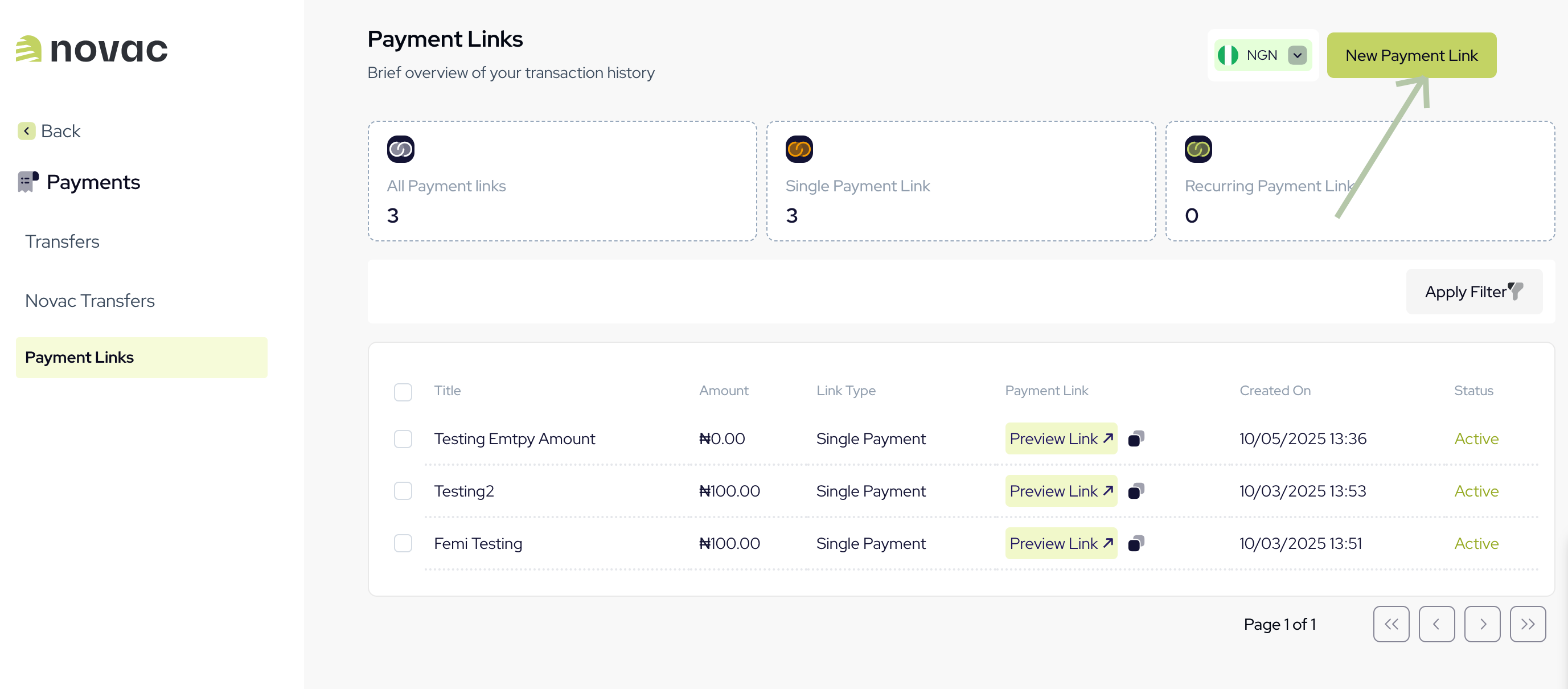
 Click the **New Payment Link** button to create a new link.
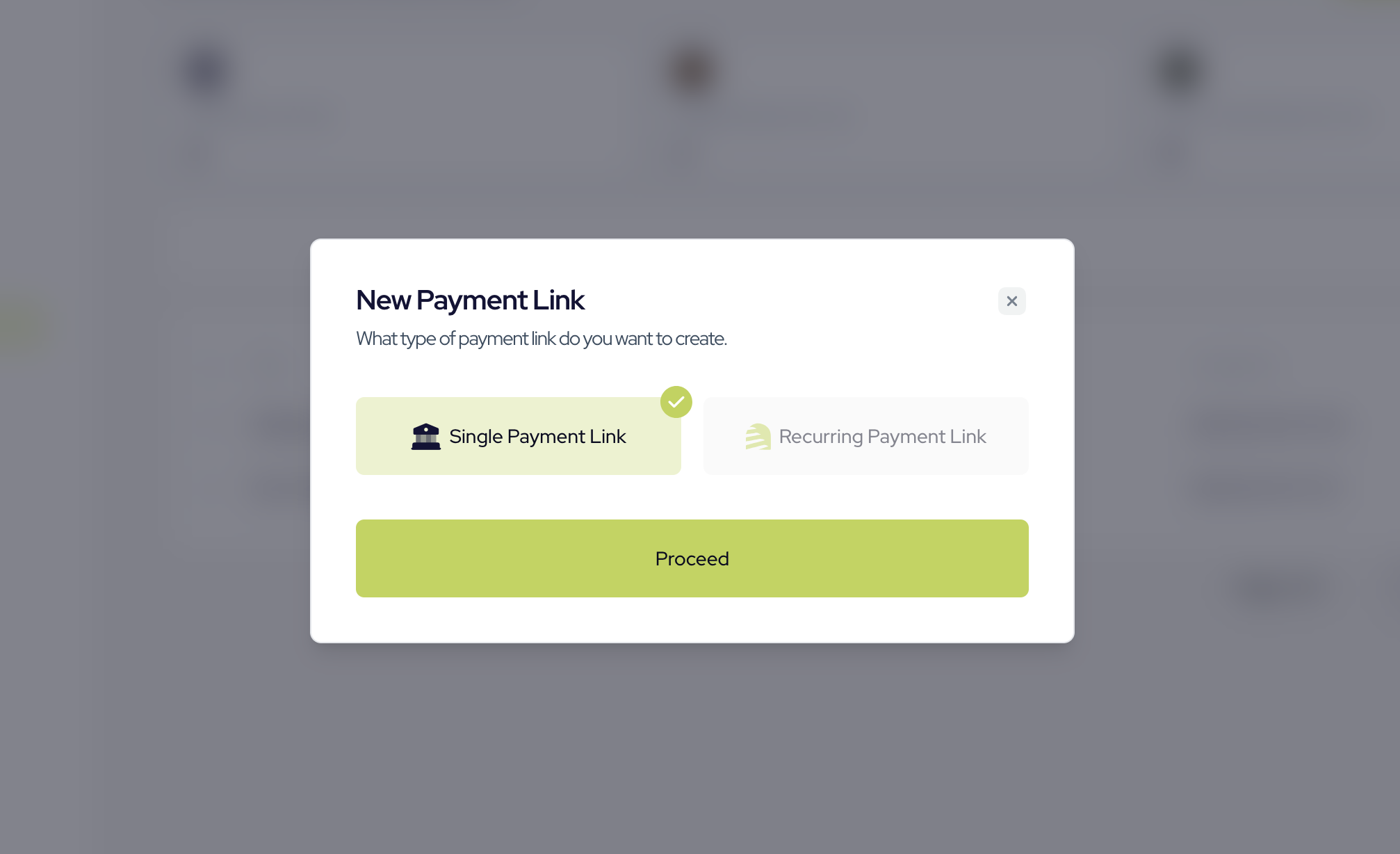
 Select the preferred payment link type that suits your business needs — choose **Single Payment Link** and click **Proceed**.
The **Recurring Payment Link** option is still under development and not available for public use at the moment.
Select the preferred payment link type that suits your business needs — choose **Single Payment Link** and click **Proceed**.
The **Recurring Payment Link** option is still under development and not available for public use at the moment.
 Fill in the required details for your new payment link in the form and click **Create Link** to complete the process.
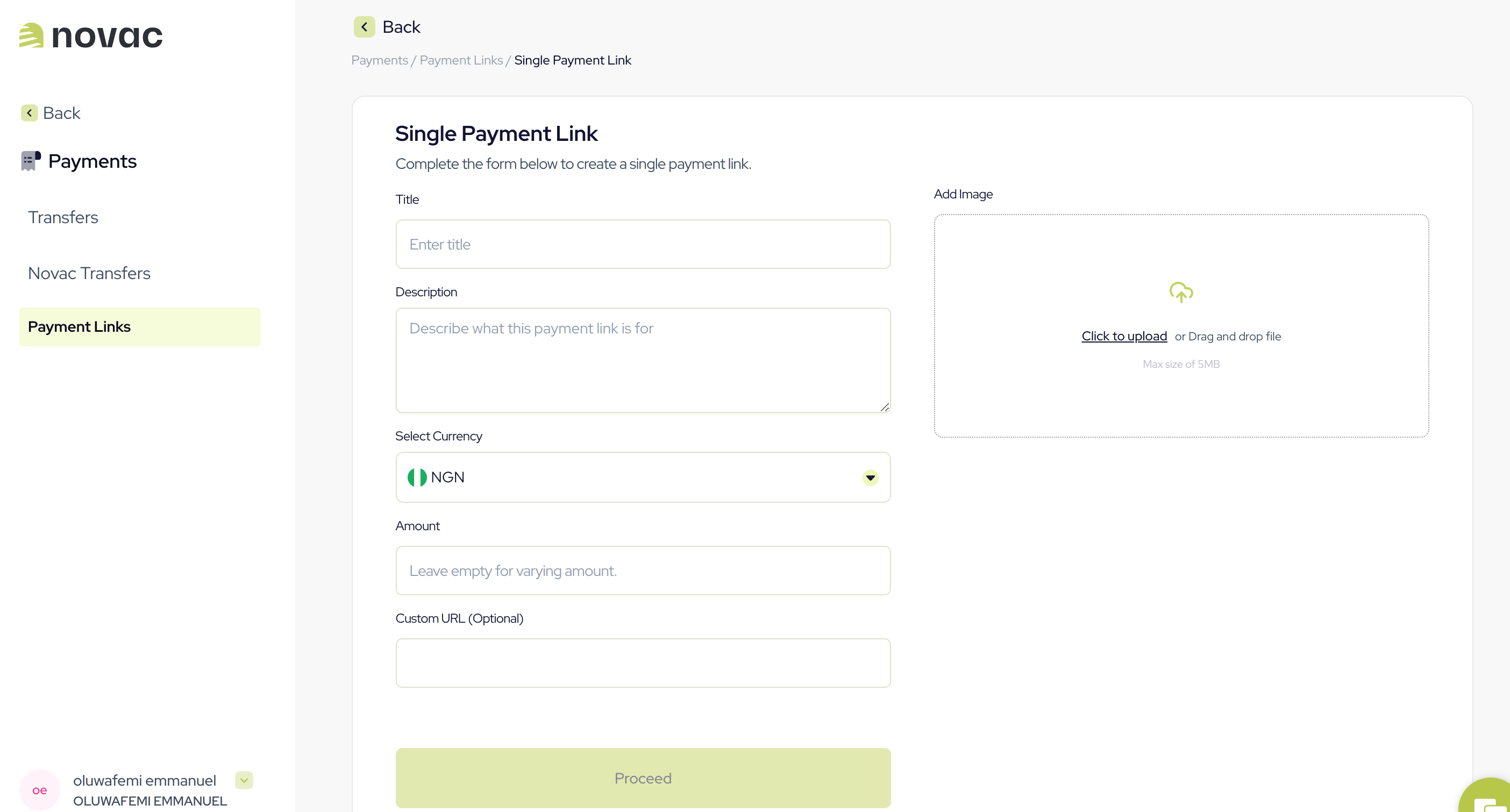 To allow payers to enter their own amount, simply leave the "Amount" field empty.\
This enables multiple people to pay any amount they choose through the link. Perfect for receiving donations or flexible payments.
***
## What's Next?
Now that your payment link is ready, you can go beyond simply sharing the URL — you can use it programmatically to create checkout sessions that are uniquely tied to this link.
This is useful when you need to:
* Charge a specific customer a defined amount via the link.
* Pre-fill customer details like name and email for a smoother experience.
* Generate a one-time checkout URL that you can track individually.
* [Create a checkout with a payment link reference](/docs/accept-payment/checkout/create-checkout-with-payment-link-reference) — Learn how to tie a checkout payment to your payment link and redirect your customer to complete the payment.
To allow payers to enter their own amount, simply leave the "Amount" field empty.\
This enables multiple people to pay any amount they choose through the link. Perfect for receiving donations or flexible payments.
***
## What's Next?
Now that your payment link is ready, you can go beyond simply sharing the URL — you can use it programmatically to create checkout sessions that are uniquely tied to this link.
This is useful when you need to:
* Charge a specific customer a defined amount via the link.
* Pre-fill customer details like name and email for a smoother experience.
* Generate a one-time checkout URL that you can track individually.
* [Create a checkout with a payment link reference](/docs/accept-payment/checkout/create-checkout-with-payment-link-reference) — Learn how to tie a checkout payment to your payment link and redirect your customer to complete the payment.