
Overview
Payment preference on Novac gives you control over how your customers pay and how transaction fees are handled during checkout. Instead of showing every available payment option or applying a fixed fee behavior, you can tailor the experience to match your business goals. This helps you:- Improve conversion by simplifying payment choices
- Guide customers toward preferred payment methods
- Decide who bears transaction fees (you or your customer)
- Maintain better control over your revenue and margins
Controlling Payment Methods
To control which payment channels are presented to customers at checkout. You can configure this at two levels: a global default on the dashboard which applies to all transactions, or a per-transaction override via the checkout API which applies to that transaction only. You can restrict what users see at checkout:"CARD,PWBT"Only card and bank transfer"USSD"Only USSD payments"Opay"Only Opay"PalmpayOnly palmpay
Set a Global Default on the Dashboard
The dashboard setting acts as your default preference for all transactions. It is the right choice when you want to consistently restrict or curate channels across your entire checkout flow without touching your code.
1
Log in to your Novac Dashboard
Go to your to your app and sign in.
2
Navigate to Payment Preference settings
Click on settings in the sidebar and select transaction settings tab.
3
Select Manage Payment Methods for Your Payment Link
Choose one or more payment channels. Your selection applies to all future transactions unless overridden at the checkout level.
4
Save your changes
Click Save. The preference takes effect immediately for new transactions.
Set Per-Transaction via the Checkout API
Pass theallowedPaymentOptions field in your checkout request to control which channels appear for that specific transaction.
Fee Handling Options
In addition to payment methods, you can also control who pays the transaction fee. This directly impacts both the customer experience and your final settlement amount.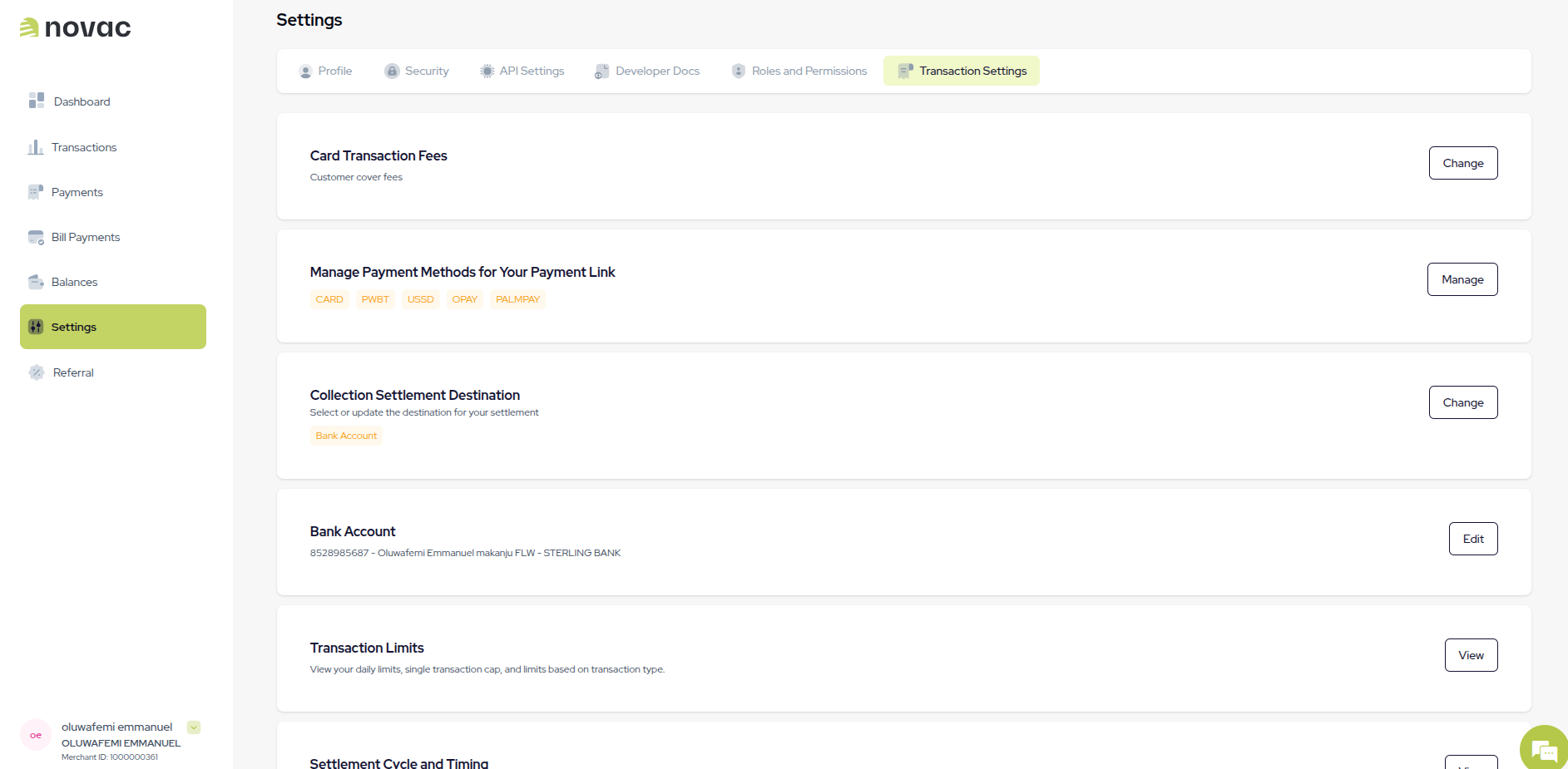
I will cover (Merchant pays the fee)
The transaction fee is deducted from the payment amount before settlement.- Customer pays: ₦500
- Fee: ₦30
- Merchant receives: ₦470
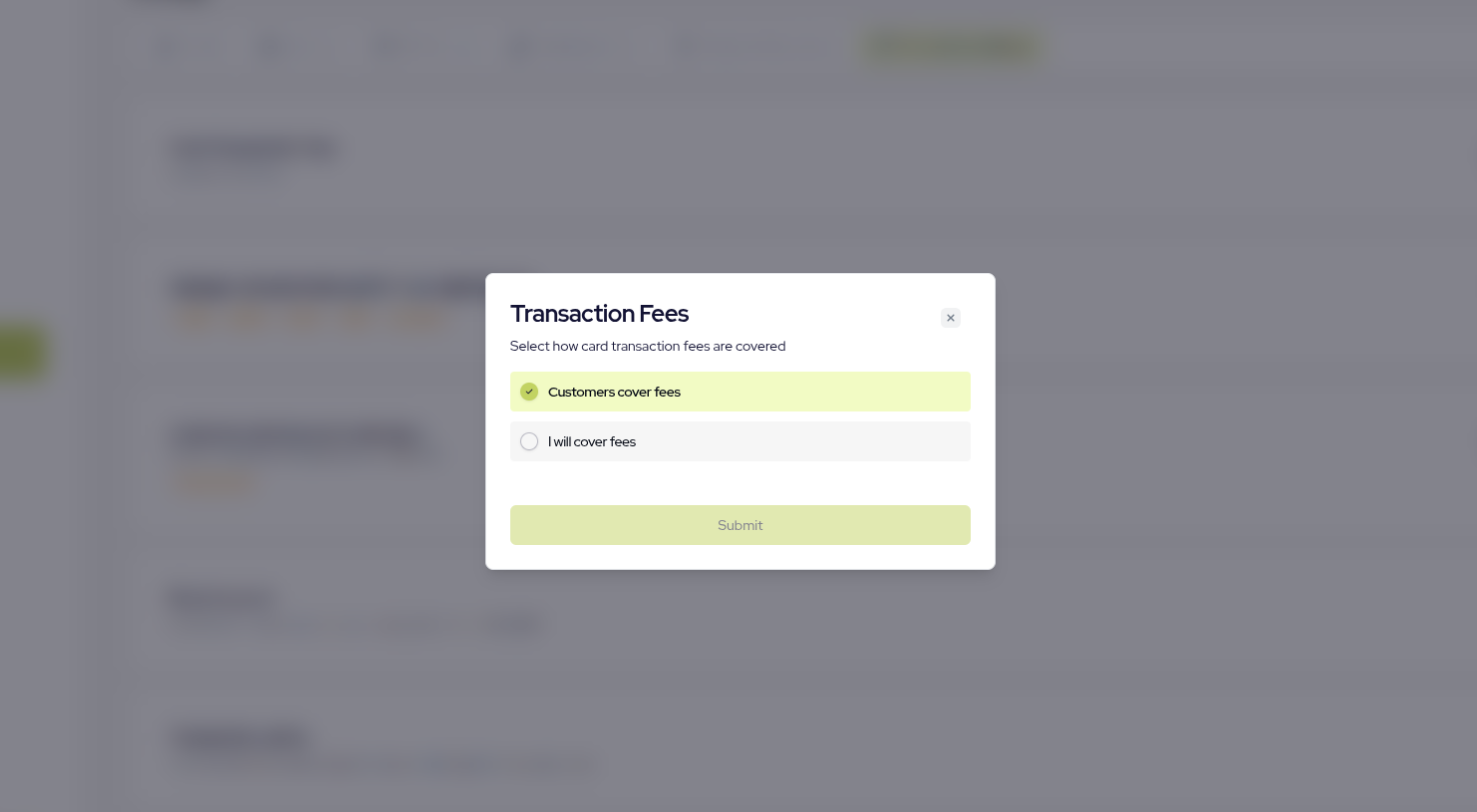
Customer covers (Customer pays the fee)
The transaction fee is added on top of the payment amount.- Customer pays: ₦500 + ₦30 = ₦530
- Merchant receives: ₦500